In two simple steps: how to make YouTube’s home screen boring

Meir Nitzan
In talks I’m often asked about YouTube Shorts; it turns out plenty of adults spend hours with it late into the night… But what about the kids? In many homes the computer account belongs to a parent, and the kids who use it are exposed to YouTube - which can be an excellent, helpful tool, but also a truly addictive substance.
It can be different in two simple steps.
YouTube’s default home screen encourages addiction: the moment we or our kids open the app, we’re flooded with suggestions tailored exactly to our preferences. In practice, we learn that YouTube is a platform that doesn’t ask us to think - just like candy or a cigarette. Kids enter a world where the algorithm drives the brain from the first second. They develop an emotional dependence on what the algorithm offers and waste hours on fleeting content.
You can change that. You can turn YouTube into a useful tool that trains kids for intentional use every time they open the app or a browser tab.
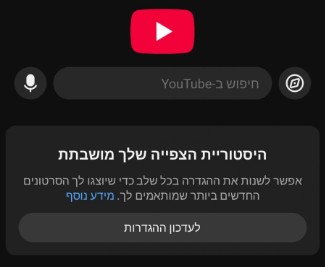
In two super-easy steps, YouTube’s opening screen becomes boring. When YouTube’s screen is empty, like a Google search — we get a moment of intention. We and our kids choose on purpose what to watch, instead of being pulled in. That dramatically lowers device dependence and addictive consumption.
What do you do?
- Turn off Autoplay (automatic play of the next video)
- Clear and pause watch history (it can feel scary, but you can still find everything you want).
What to do in practice
1. Turn off Autoplay
The steps in the YouTube app are almost identical on both operating systems.
From the player:
- While watching a video, tap the screen and switch Autoplay (at the top of the video) to off.
From app settings:
- Tap your profile picture or the “You” tab at the bottom of the screen.
- Tap the settings icon (gear).
- Choose “Autoplay”.
- Turn the switch off.
Recommended: under Settings > General, also turn off “Muted playback in feeds” so videos don’t start playing by themselves while you scroll.
2. Clear and pause watch history
- Open the app and tap your profile picture or “You”.
- Tap the settings icon (gear).
- Choose “Manage all history”.
- To delete existing history: tap “Delete” at the top → “Delete all time”.
- To pause future history: go to the “Controls” tab and turn videos off, or tap “Turn off”.
What happens on computer and TV after the change?
If the computer and TV are signed into the same Google account, the changes work like this:
Watch history (clearing the home screen): history is tied to the Google account. Once watch history is deleted and paused on mobile, the change applies immediately on every device. YouTube’s home screen becomes empty of recommendations and algorithm on both computer and TV, and mainly shows the search bar.
Autoplay: this setting is managed per device. Turning off Autoplay on the phone will not turn it off on the TV or computer. To stop automatic next-video play there too, turn the switch off once on the computer (at the bottom of the video player) and on the TV (in the TV app settings).
Instead of opening YouTube to “unwind,” your kids will practice intention - a little more every day.